Set Up WebDAV in SimpleDMS
WebDAV lets you upload files from scanners, multifunction printers, desktop applications, or scripts directly to a Space inbox. Each device receives separate credentials. Your SimpleDMS account password is not used.
WebDAV is an upload-only intake channel in SimpleDMS. You cannot use the connection to view, download, or delete documents.
Requirements
- Your account has access to at least one Space.
- The device or application supports WebDAV over HTTPS with a username and password.
- The device can reach your SimpleDMS installation over the network.
1. Open WebDAV
Sign in to SimpleDMS and open «WebDAV» in the main menu.
2. Create Device Credentials
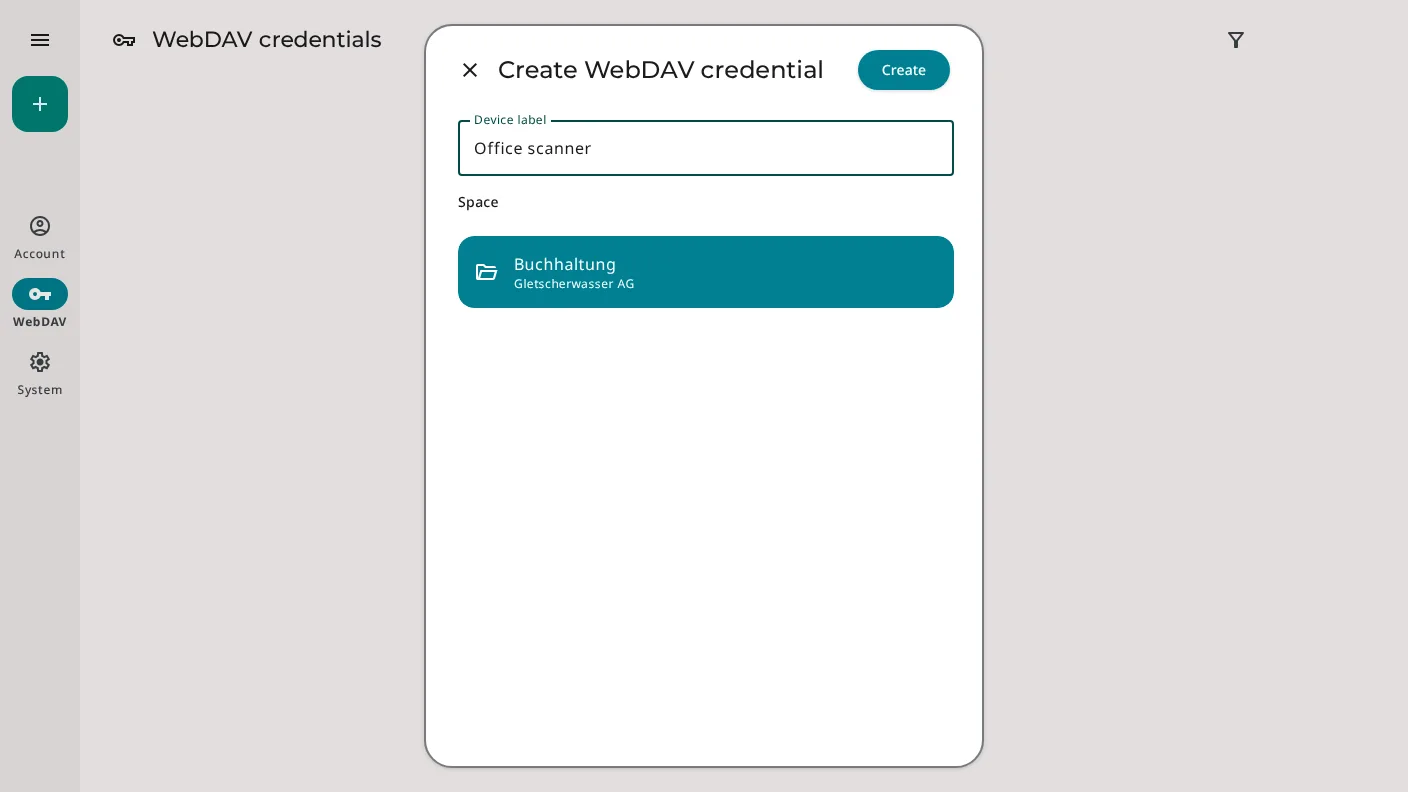
Select «Create WebDAV credential». Enter a clear device label, such as «Office scanner», and select the Space for uploads. Files from this device will arrive in the selected Space inbox.
Create separate credentials for each device. You can then revoke one device without reconfiguring the others.
3. Copy the URL, Username & Secret
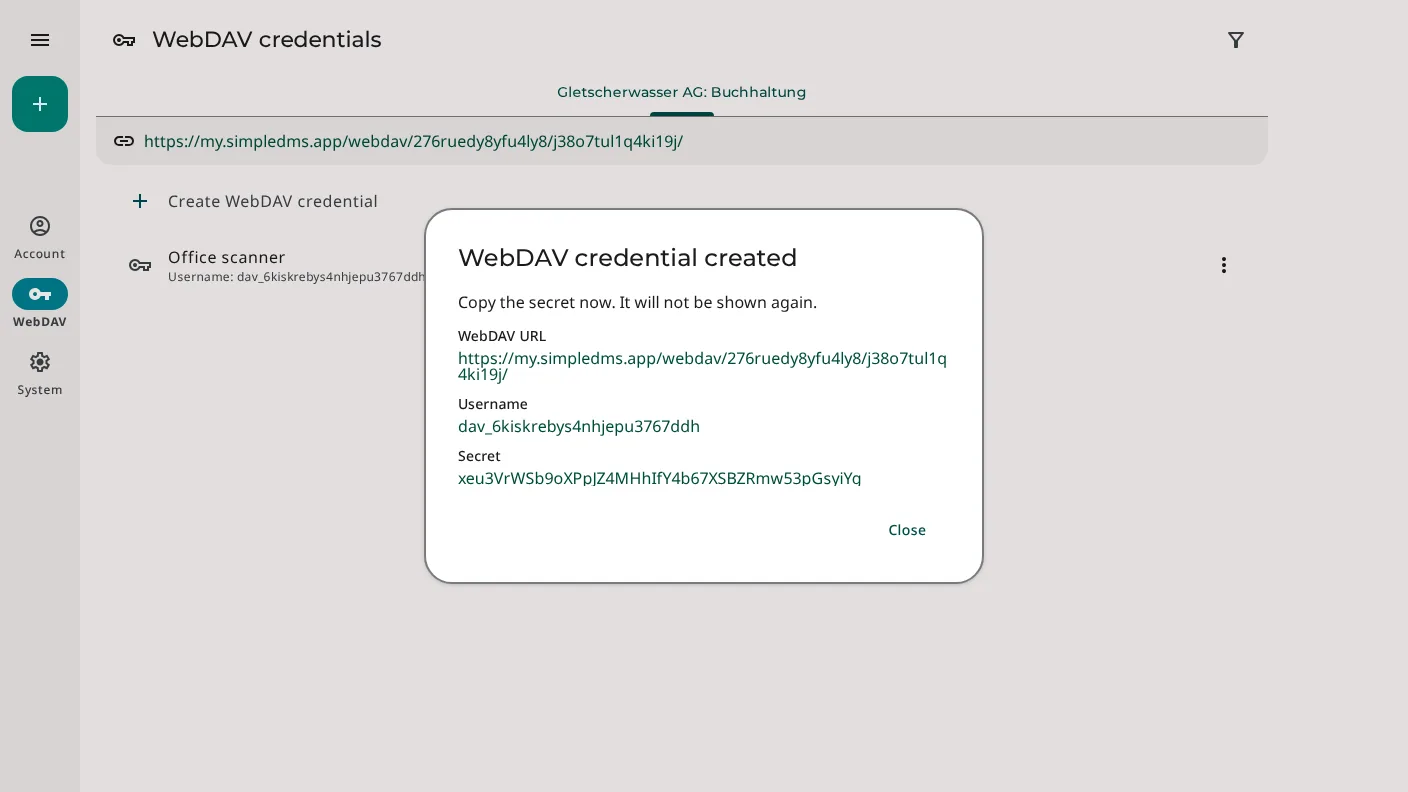
After creation, SimpleDMS displays the WebDAV URL, username, and secret. Copy all three values before closing the dialog. The secret is shown only once and is used as the password in your WebDAV client.
The values in the screenshot are examples and are no longer valid.
4. Configure the WebDAV Client
Enter the copied values in the device or application:
- Server or WebDAV URL: the URL displayed by SimpleDMS
- Username: the generated username with the
dav_prefix - Password: the secret shown once
- Authentication: Basic Authentication
- Encryption: HTTPS
If the client requires an exact destination folder, append Inbox/ to the WebDAV URL.
«Inbox» is case-sensitive. Upload files directly to this folder. Subfolders are not supported.
5. Verify the Upload
Upload a test file from the device or application. Then open the selected Space and its inbox in SimpleDMS. The file is ready for further processing there.
The WebDAV connection does not display existing or previously uploaded documents. Check the result in the SimpleDMS web application instead.
Revoke or Replace Access
Open «WebDAV» and the menu next to the relevant credentials. You can change the device label or permanently revoke access.
Create new credentials if a secret is lost. An existing secret cannot be displayed again. Revoke credentials you no longer use, especially after replacing or losing a device.
Troubleshooting
- Authentication fails: Use the generated username and secret, not your email address or account password.
- The destination cannot be found: Check that the address ends with
Inbox/and uses the correct capitalization. - Folders or files are not displayed: The connection is upload-only and does not list documents.
- The upload is rejected: Check your SimpleDMS installation's maximum upload size and available storage.
- The server returns 403 behind a reverse proxy: Check the trusted proxy and HTTPS forwarding configuration.
More information