Set up MCP in SimpleDMS
You want an AI assistant to find or work with documents in SimpleDMS. Create separate MCP credentials and add them to your MCP client. The connection applies to one selected Space.
Prerequisites
- SimpleDMS 1.18.0 or newer.
- Your AI application can connect to SimpleDMS using a server address and a token. You will create these connection credentials in this guide.
- You are signed in to SimpleDMS normally. A temporary session for initial setup cannot create MCP credentials.
Instructions
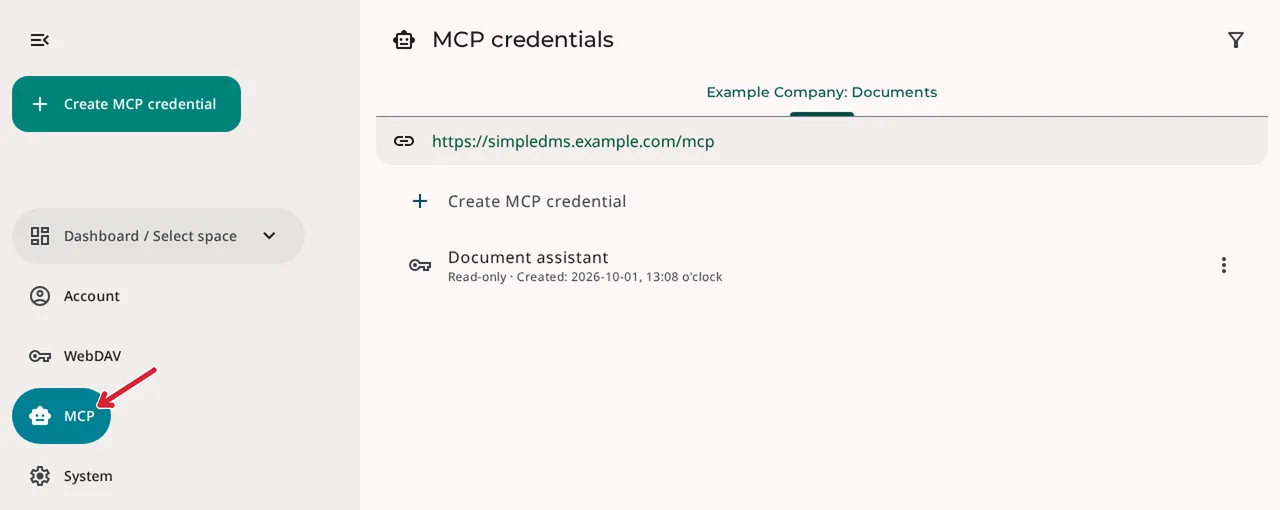
1. Open MCP
Sign in to SimpleDMS, open the main menu, and select «MCP». This opens the «MCP credentials» overview. Existing credentials are grouped by Space.
2. Create a credential for your client
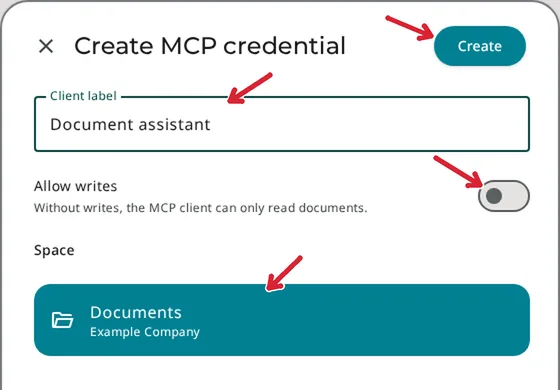
Select «Create MCP credential». Enter a name under «Client label», such as «Document assistant», and select the Space the client should work with.
Leave «Allow writes» off if the assistant should only search and read. Turn it on if it should also upload, classify, manage notes, or file documents. Then select «Create».
Create separate credentials for each client so you can revoke a connection individually later. A different Space or access mode requires a new credential.
3. Add the URL & token to your client
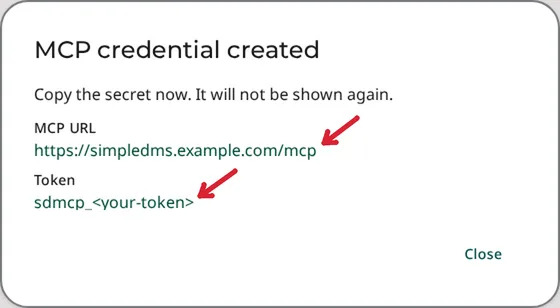
SimpleDMS shows «MCP credential created». Copy «MCP URL» and «Token» before closing the dialog. Clicking each value copies it. The token is shown only once.
Open your MCP client's settings for MCP servers or connections. Add a remote HTTP server with the following values:
| Client setting | Value |
|---|---|
| Connection name | A name of your choice, such as «SimpleDMS» |
| Server URL | The copied MCP URL, including /mcp |
| Transport | Streamable HTTP, sometimes labelled HTTP or Remote |
| Bearer token | The copied token, if the client has a dedicated token field |
| Custom header | Alternatively, header name Authorization, value Bearer <your-token> |
Replace <your-token> with your complete token. A dedicated bearer-token field usually takes only the token. For a custom header, put a space between Bearer and the token. Use neither your email address nor your account password.
Save and enable the connection in the client. Reload its MCP connections if needed. The address and token in the screenshot have been replaced with example values.
Check the result
Ask your assistant: «Use the SimpleDMS get_space tool and show me the connected Space and access mode.» It should name the Space you selected. For read-only access, the result includes read_only: true.
Then ask: «Use list_inbox to show the documents in this Space's Inbox.» An empty list is a valid result if the Inbox contains no documents. To search already-filed documents, the client uses search_files.
The connection does not give your client access to other Spaces. With write access, changes can also appear in the SimpleDMS web application. Refresh the relevant view to see them.
Manage the credential
Under «MCP», open the «Actions» menu beside the credential. You can change its label or revoke it. Changing the label affects neither the Space nor the access mode.
If you lose the token, create a new credential and revoke the old one. The existing token cannot be displayed again. Use the overview's status filter to find revoked credentials.
Common problems
The client only offers browser sign-in
SimpleDMS uses a separately created MCP token. Check whether the client supports a bearer token or custom HTTP headers. A connection dialog that requires OAuth is not compatible with this connection.
The connection is rejected
Check the complete MCP URL and token. A custom header value must begin with Bearer . A revoked token or lost account/Space access prevents the connection. If the installation is locked or in maintenance mode, contact your admin.
Reading works, but changes fail
Check whether you enabled «Allow writes» when creating the credential. If not, create a new credential with write access. Existing permissions still apply, for example to notes written by other people.
The Space you want is missing
You can select only a Space you can currently access. Ask your admin to check your access. An organization in maintenance mode is also unavailable for new credentials.