OpenCloud integration for users
With the OpenCloud integration, you can send a file from OpenCloud directly to SimpleDMS.
Prerequisites
- Your admin has installed the OpenCloud Web extension and SimpleDMS 1.17.0 or newer.
- Your admin has set up the integration in OpenCloud and SimpleDMS.
- You are signed in to OpenCloud and have permission to download the selected file.
- OpenCloud allows you to create a public link for that file.
Instructions
1. Start the export in OpenCloud
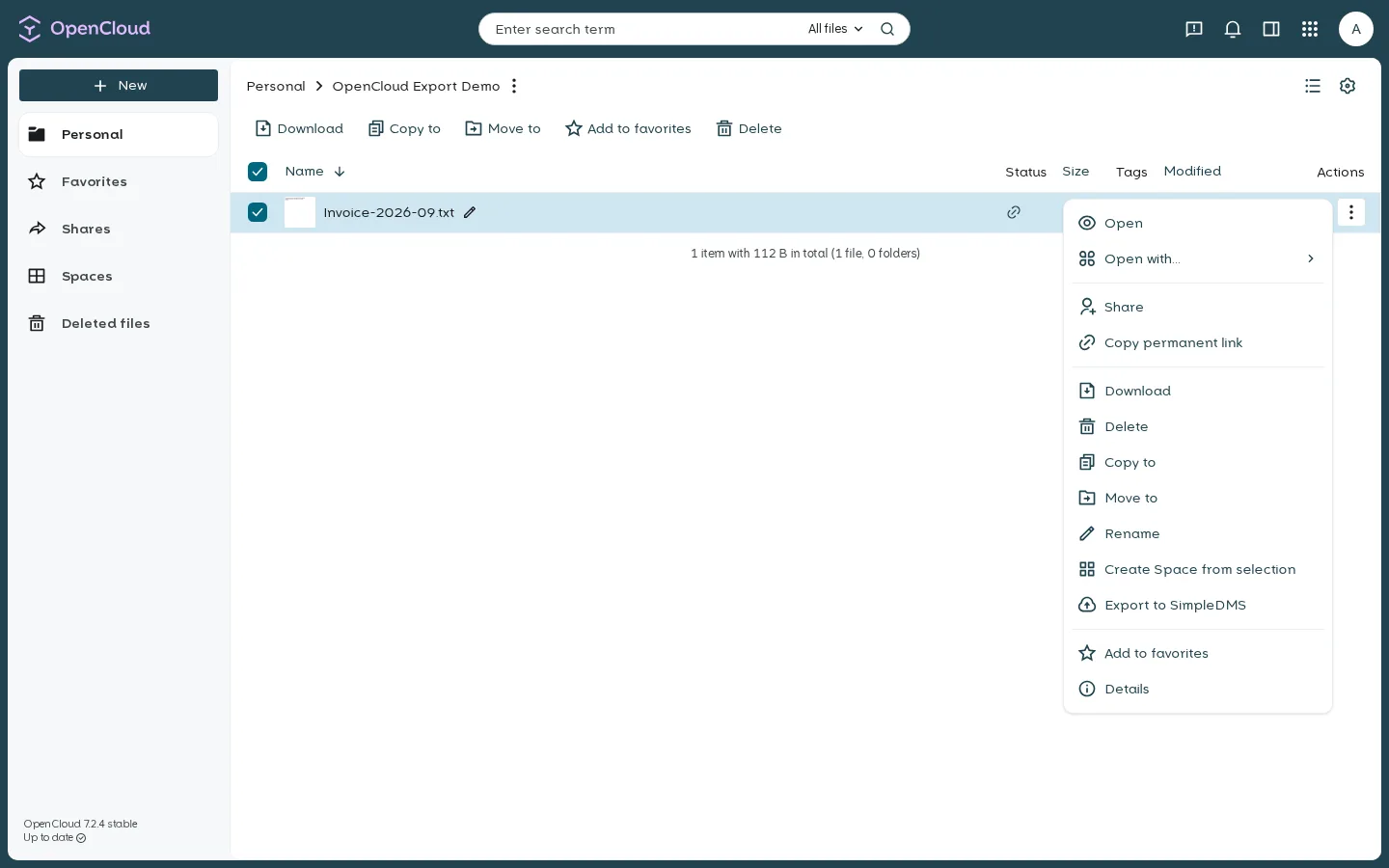
Open a file's context menu and select Export to SimpleDMS.
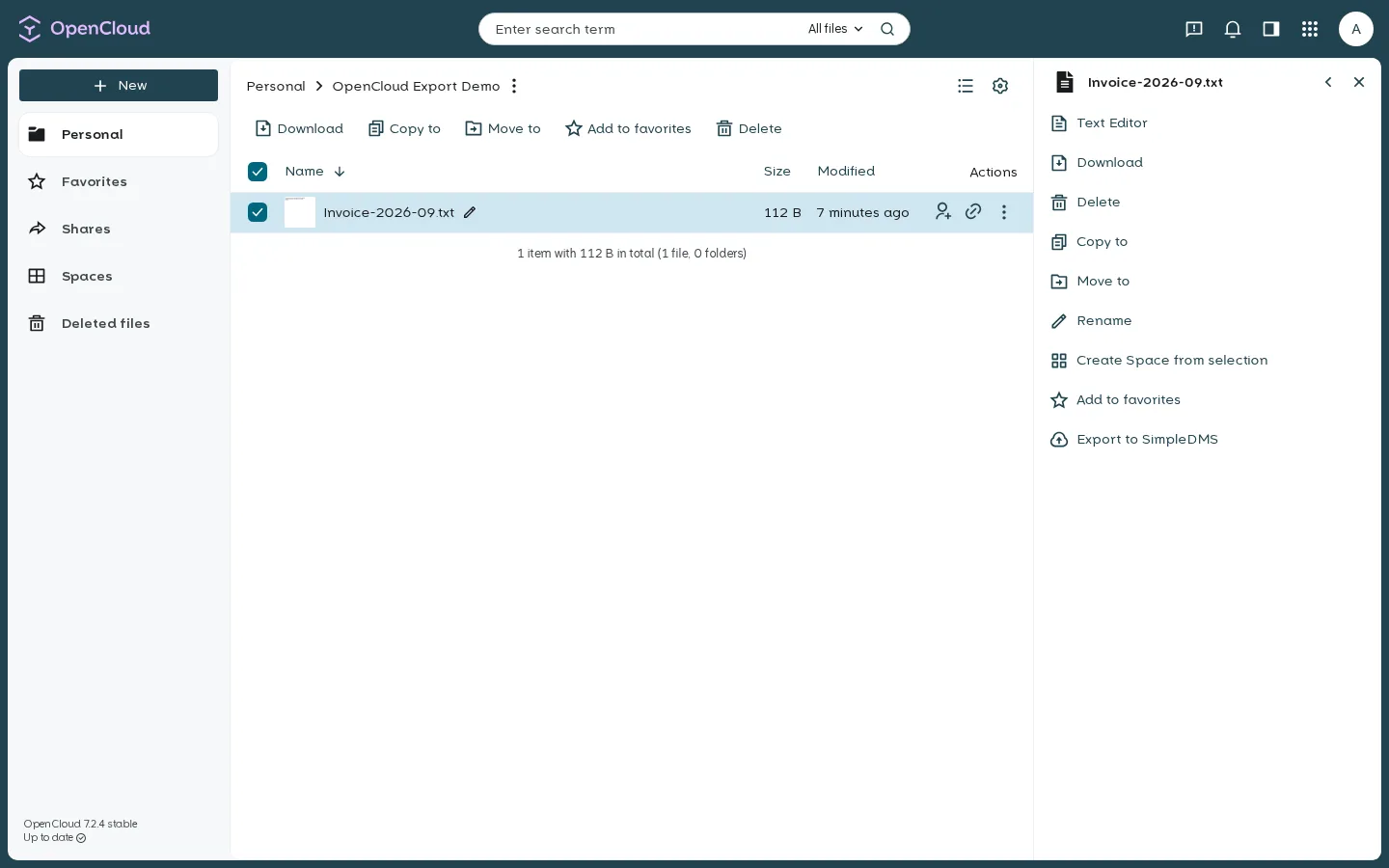
Alternatively, select the file, open its sidebar, and choose Export to SimpleDMS in the Actions tab.
2. Confirm the import in SimpleDMS
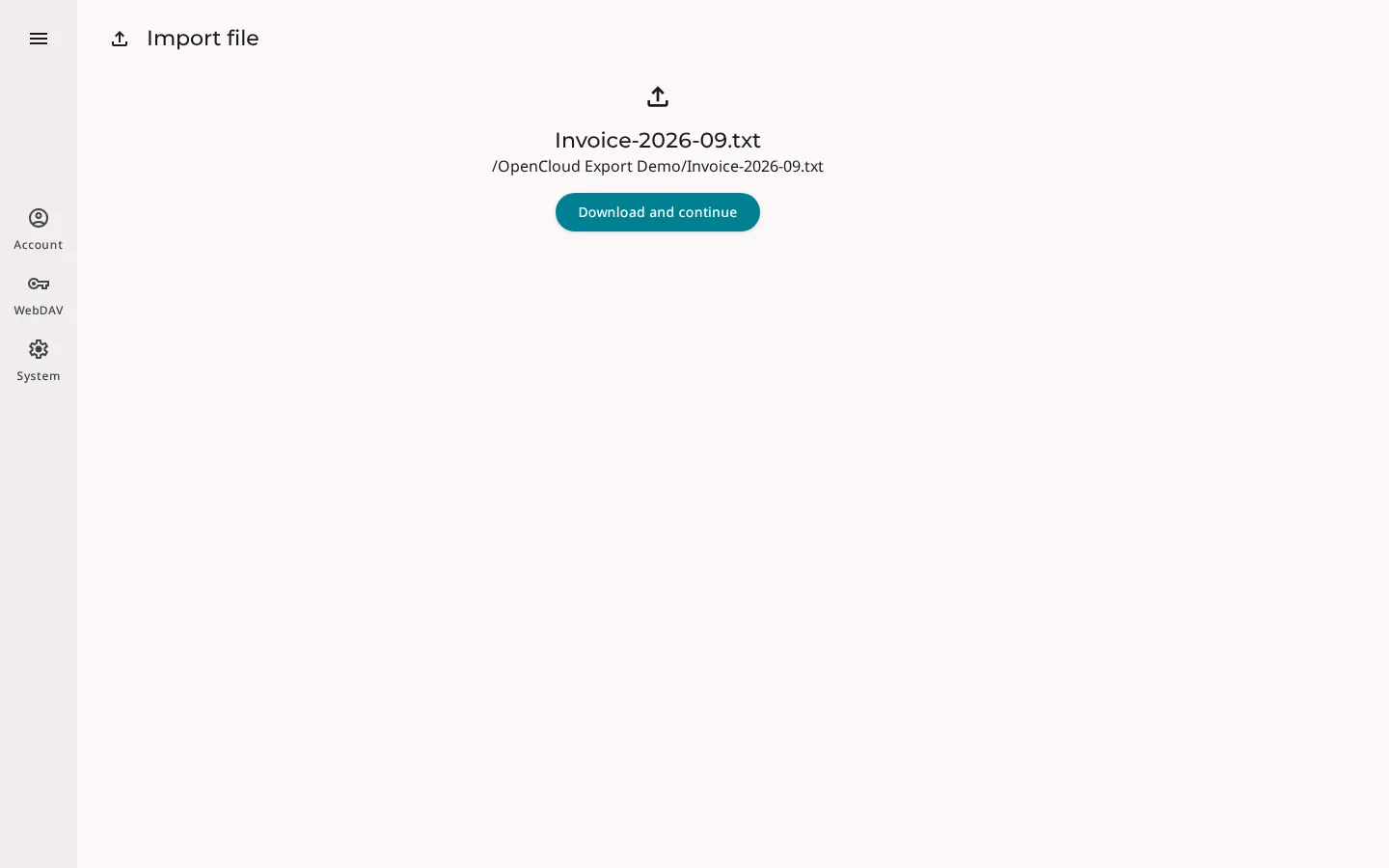
SimpleDMS opens in a new browser tab. Sign in if prompted. Check the filename and, when shown, its OpenCloud path. Then select Download and continue.
Keep the original OpenCloud tab open until SimpleDMS has downloaded the file. This allows the integration to revoke the temporary public link afterwards.
3. File the document
After the download, select a Space and file the document as usual in SimpleDMS.
Action availability
The action is available in the context menu and sidebar for one downloadable file at a time. It is not shown for:
- folders,
- secure-view files,
- public links,
- files in encrypted vaults, or
- installations where the integration is not fully configured.
Notes
- The extension creates a password-protected, read-only public link for the export. The link is not single-use.
- After the download, the integration tries to revoke the link. If the OpenCloud tab is closed or revocation fails, the link remains usable until the end of the day.
- If your browser blocks the new tab, the extension opens SimpleDMS in the current tab. In this case, it cannot revoke the link immediately after the download.
- Start a new export if a link has expired or been revoked. A failed download does not automatically consume the link.
- The original file in OpenCloud remains unchanged.
- If the action is missing or the export fails, ask your admin to check the integration settings, public-link permissions, password policy, and network reachability.